Showing posts with label Operating System. Show all posts

Friday, April 5, 2013

How do you get Facebook Home, for Android?

I've never been that excited about launchers, but there's a new one coming that's rather different. This one, you see, has a purpose. Facebook Home, which can be installed only on Android, is a film through which your phone is viewed. Facebook becomes central to your smartphone experience, starting with the homescreen and lockscreen, which are replaced with "Cover Feed"... streaming of posts and pictures, which you can actually like, comment on, etc, natively; no need to open the Facebook app. Chat Heads is the second big feature; this combines Facebook messages with texts, and allows multitasking so you can work in another app and then come back to the chat, without interruption. Lastly, Facebook Home includes an App Launcher. It... ehm... launches apps. I'm not so very excited about this particular aspect of Facebook Home.
In summary, Facebook Home makes Facebook more than just easily-accessible... rather, it's already active, no matter what else is open on your phone. View the official website, for more information. The first phone to include Facebook Home natively is the HTC First, already available for pre-order here. You don't have to buy the HTC First, though... the family of apps will be available for download from the Google Play Store on April 12. Currently, the Samsung Galaxy Note II, the Samsung Galaxy S III, and the HTC One series are supported, but I'm confident Facebook Home will be available across-the-board, quickly. If you have an Android, that is. If you have an iPhone, well, to quote Doug Gross, CNN contributor, "Your wait might be quite a bit longer. Or, you know, forever." Can anyone tell me why that might be? It's because Android is an open source operating system, permitting such overhauls as Facebook Home. That is why we love it.

That's also why Android is winning the smartphone war. In the first quarter of 2013, Android accounted for 51.2 percent of smartphone sales, compared with Apple's 43.5 percent, according to The Economic Times. It is interesting to note that new smartphone subscribers in that same time period leaned drastically toward Apple, over Android. When you view that in light of the total picture, in which Android dominates, the conclusion is that the novice buys an iPhone... later realizing iPhone doesn't cut it and switching to Android, for the complete smartphone experience.

Wednesday, February 13, 2013

How Do You Know Android? (Easter Eggs & Hidden Features)

I spent some time, last weekend, with three iPhone-toting friends. Now, I try to keep my Android fervor contained, but if my input is invited, I eagerly enter into discussion. One iPhone argument presented was the ease of use, resulting in a straightforward smartphone experience -- no options means no confusion. Based on the fact that these are highly intelligent dudes, who aren't satisfied with face value, but must delve toward the root of any topic, I am unconvinced; iPhones don't cut it for their personality types, and I think they realize that. Unfortunately, I also encountered the brick wall of no strong iPhone or Android preference, simply happy with a phone that makes and receives calls: touche. However, one final point discussed was that iPhones have unpublished hidden features that are fun to discover; that point is the prompt for this post.
iPhone cannot compete with Android in terms of hidden features:

  1. Most Android phones will let you rename folders (in your gallery, for example) by longpressing the folder name.
  2. Another feature on most Androids is keyboard shortcuts like Search + B for Browser, Search + C for Contacts, Search + M for Messaging, Search + G for Gmail, etc.
  3. On the Samsung Galaxy S II, the screen brightness can be adjusted by holding the notifications bar until the bar disappears and the adjuster takes its place.
  4. On the Nexus 4 camera, swipe your finger from the top left and right corners to reveal menu shortcuts, for exposure and focus.
  5. On the Nexus 4, reveal hidden developer options by locating Build Number under About Phone, and tapping 10 times.
  6. On the Nexus 4, repeatedly tap Android Version, under About Phone, to reveal the Jelly Bean version Easter Egg. This time around it's a BeanFlinger game. Once you've found the Easter Egg and played it once, the game will become a "Daydream" screensaver menu option.
There are many more hidden features, tips, and tricks for Android... but if I told you what they all are, they wouldn't be a surprise any more. As you customize your Android, with widgets, preferences, etc., molding the perfect-for-you smartphone, you'll realize there are endless discoveries to be made.

Thursday, January 31, 2013

How do you overcome a Samsung Galaxy S III obsession?

I've done it: I'm over the S3. This gem has been the standard to which I hold all other phones since spring of 2012; but now, close to a year later, I have a new standard... and I've arrived at a place where I can acknowledge the features of the S3 that I'm not that excited about. (There aren't many.)

Flaw #1:
The Samsung Galaxy S III receives upgrades to Android too slowly. This is the most-purchased phone out there (Apple doesn't release too many numbers, but near as I can figure the 2nd place phone (the iPhone 5) sold 5,000,000 units its first week, while the S3 sold 9,000,000 that first week. And don't forget Android sales are divided up among many phone choices, while Apple fans have only one current option.), so you would think getting the second phase of Jelly Bean, version 4.2, wouldn't be taking this long. I'm bored with old Jelly Bean -- it's so three weeks ago.

Flaw #2:
It is irritating that the Samsung Galaxy S III takes a Micro SIM. This, however, is a very minor fault. First, because it would seem devices are heading in the direction of Micro SIMs, based on the fact that my new favorite (to be revealed below, after a bit more nail-biting suspense) also takes a Micro SIM; second, because it is easy to convert a Standard SIM to a Micro SIM, as well as to use an adapter to switch it back.

Flaw #3:
This is my most serious complaint with the Samsung Galaxy S III: the physical home button. I dislike this immensely. We switched to touch for a reason. It seems minor, and until I had actually used an S3 I just though Huh... interesting (though even at that early hour I was harassed by my second reason to dislike the physical home button). After using it, I realized it really makes a difference -- you have to hold a phone differently, brace it differently, if pressure (not just touch) is required to get a response. My second complaint with the physical home button is that it is a feature of iPhones -- Android doesn't need it; Android doesn't want it. Android has given Apple incentive to point and laugh: Ha! They're trying to make their phones just like ours! Not good.


I still think fondly of the S3 (it is a gorgeous phone: sharp and slim), but it is no longer my favorite. The Google Nexus 4 now holds that position. The specs are top of the line; the design is sleek; as Google's phone it receives updates lightning-fast; and (my favorite feature of all) the Android operating system is not seen through the film of Samsung, HTC, or Motorola -- it's pure Android.

Wednesday, January 9, 2013

How do you automate tasks on an Android phone?

You walk out to your car, and your Android begins playing Pandora radio and switches to car mode. You walk into the office, and Pandora exits, as your phone  moves into standby mode where pictures from your gallery float around the screen. As the meeting in your schedule approaches, your Android reminds you and then opens the camera in front-facing mode, for a quick appearance-check before you go impress the boss.

All of this can be automated, using an app like Tasker. It's a fascinating system of prompts... if this, then that scenarios, rather like an Excel formula. For example, as you leave your house, you can't pick up home's Wi-Fi, which becomes a prompt to open Pandora and switch to car mode. Picking up the office network could be the prompt as you arrive. A couple other simple prompts would be an incoming notification, or opening an app.

Location or activity-based automations aren't the only option with Tasker; you can also set up shortcuts, in which one touch will go through a whole process. For example, you can write a command that will put an icon on your screen which, when touched, will take a picture and email it to a specific email address in your Gmail account. If your phone can do it, Tasker can automate it. The potential with this sort of program is limitless, helping you to keep up with life, never forget important events, and do everything you currently do with your phone, without all the steps in between that seem to take up most of the time we spend with our eyes on our Android screens.

Get the app from the Google Play Store here.
Get the free trial here.

Monday, January 7, 2013

How do you customize your lockscreen on an Android phone?

Why do we prefer Android over iOS? Because Android is customizable, we often say; widgets are another of our favorite features to tout. Your lockscreen is a pretty sweet forum for combining these features into one very awesome customization that will make your iPhone-toating friends drool. Here are three actual lockscreen customizations that users have created, from limitless options.


There are a couple things you need, but customizing your lockscreen is actually easy -- you'll look like an advanced Android user, disproportionate to the amount of time and effort actually spent. First, you need an app like WidgetLocker Lockscreen, SmartShift Lockscreen, Apex Launcher, or Nova Launcher (may have an easier time with Nova Launcher Prime). They all work in slightly different ways, so really it's a matter of trying yourself, to see what you like best. Customizing a step further will require an app like Ultimate custom widget (UCCW). From here, it's quite self-explanatory. Specify what exactly you want to show on your lockscreen, in the customization sections of the lockscreen or launcher apps. They will allow you to place widgets, icons, photos, etc. Then, when you have fiddled with that for a while and are ready to step it up a level, design your own widgets, in UCCW, and get to the point of making your lockscreen precisely what you find convenient and cool.

I may post some of my creations at some point soon, and would love to add yours to my gallery. Let me know, in a comment or email, if you have a customized lockscreen you'd like displayed.

Friday, January 4, 2013

How do you provide evidence that Android is superior, from people who matter?

You know Robert Kawasaki... Rich Dad, Poor Dad? I'm not talking about him. I looked it up, and they're not related.
This is Guy Kawasaki. And he's his ooooooown thing.


Guy Kawasaki was an "Apple fellow"... officially. In 1995, after the original Mac craze had fizzled out, Kawasaki was on staff at Apple with the modus operandi to, as he put is, "reignite the Mac cult." While he probably saved Apple from failing that decade, and while he continues to use and love Mac's, he has interesting things to say about the iPhones he no longer carries.

When the iPhone 4S was the newest Apple iOS release, Kawasaki switched over to an Android mobile phone, because he wanted to take advantage of 4G LTE network, which advance had not yet reached Apple. While this deficiency has been removed in the iPhone 5, Kawasaki adamantly sticks with Android. A few of his favorite features include superior multitasking, alphabetically arranged apps, NFC support, and a standard cable.

Kawasaki explains the transformation, saying, "I fell in love with Android on the smartphone, and then I got a Nexus 7 and started using Android on the tablet as well. To me the great irony is that Apple's slogan was 'Think Different,' but today if you think different you're looking at Android." He has now arrived at a place where he says, "Real men use Android."

By the way, Steve Wozniak -- co-founder of Apple -- while preferring iPhone personally, has been recorded as recommending Androids to certain people. Interesting.

Saturday, December 29, 2012

How do you use Android Jelly Bean version 4.2?

Last month, Google released Android version 4.2... an upgrade on the July-released Jelly Bean. It's pretty sweet.


You know how you dismiss the upgrade iTunes reminders dozens of times before eventually upgrading, and more often than not you don't see a change? (Ok, to be fair iTunes is a solid program, which I do use.) Well, not so with Android upgrades. Upgrades always seem zippier, smoother, and just cool feature-filled. The camera in 4.2, in addition to changes in the notifications bar capabilities are probably the biggest changes. Feature-by-feature, this is what's new in Android Jelly Bean, version 4.2:

  • Any HDMI-enabled TV can display what's on your Android, wirelessly. All you need is a wireless display adapter, and your phone can beam to the TV.
  • A feature that I thought pretty whatever until I thought about it more is the phone's screensaver mode. Like a computer, instead of just going black, your screen can default to a screensaver-style display. This could be slideshows of your gallery pics, your news feeds, etc. It's pretty neat. Think about it.
  • Before Jelly Bean, notifications were simply info and a port to open the app where you take action; now you can actually choose some options from notifications. For example, if you have a reminder pop up, you could choose to email the participants or dismiss the reminder right from the drag-down notifications bar.
  • Battery life is improved in this Android version, through a brilliant feature in which your fingers on the screen increase CPU usage, which goes semi-standby when not in use. Touchscreen and speed improvements are noticeable... zippy is my word of choice.
  • Now we've all seen the spectacular Samsung Galaxy S3 commercials, in which device owners share content just by touching the phones. Did you know the S3 isn't the only phone that can do this? Android Beam is a new program that uses a tap to wirelessly beam just about anything on the screen between two phones with the program.
  • Widgets (my number one reason to prefer Android over iPhone) have taken a big step in this version. Now when you drop a widget on your screen, instead of that irritating message that it doesn't fit, which causes you to lose the widget you were holding and have to dig it up again, now other widgets will resize to make room for the new one. That's very friendly of them, don't you think? 
  • Google Now makes your phone into even more of a personal assistant. You get weather every morning, location-based info such as train schedules, etc. Google searching has also improved, as well as capability to browse the web with your voice.
  • The Photo Sphere camera is a huge improvement in Jelly Bean 4.2. Basically, the camera shoots in all directions, and joins the photos together, rather like a very intelligent, vertical and horizontal panorama software.
  • Last, and probably least, Google is now excited about gesture typing. But I already knew about gesture typing, and I already like Swype (see this article about the Swype keyboard) muchly, so I'm not excited about this. Sorry, Google.
This Android 4.2 upgrade of Jelly Bean is pretty impressive. I love software developers that understand the importance of upgrades upgrading something.

Saturday, November 10, 2012

How do you deal with a battery that drains too fast?

It can be tough to make it through the day on one battery charge, with an Android. It's no wonder, really, considering that an Android essentially does everything a laptop does, but runs on about 1/4 the battery capacity. Battery capacity is measure in milliamp-hours (mAh), with the average Android battery boasting about 1500 to 2000 mAh.

Top battery drainers are the Android operating system (nothing to be done about that one), GPS (that can be off most of the time without any inconvenience), and WIFI or mobile network (your choice, based on how you use your Android, whether these two should be on or off [one can be on and the other off]). Conserve energy by limiting the amount these items are in use, or limiting your phone use in general.

What a lame suggestion.

Instead of that, I've got a couple of options (I recommend following both of these pieces of advice) that have eliminated the Android battery problem for me.

Option 1: You should have a back-up battery for your phone, that you keep with you (easily slips into a wallet), charged about 90 or 95 percent. When your phone gets dangerously low on power, just turn it off, and swap the phone and wallet batteries (don't forget to charge the one you drained, for next time).

Option 2: Buy a portable battery charger. These are my favorite. This one, called the Juice Bar (buy it just for that spectacular name) is a nice high capacity of 2200 mAh. I bought mine on eBay, and consider it a top 5 best purchase. I was out of town for the last week, and really put my "source of power" to the test -- it delivered, and may just have convinced some other smartphone owners to invest in their own portable charger.

If you do both of these things, you might often find yourself, as I have, the only one around who isn't stressing about finding a socket to charge a phone on a long day.

Friday, November 2, 2012

How do you know Android? (Android Dessert Logos)

This is the first post in a special series, that will be updated occasionally, entitled How Do You Know Android?, which gives interesting Android-related information, rather than how-to instructions. Enjoy!


On November 5, 2007, Android beta was released. Rumors say beta versions were nicknamed Astro Boy and Bender. The first version of Android to be officially released on a phone was Android 1.0, released September 23, 2008 on the T-Mobile G1 (internationally known as the HTC Dream). This first version of Android went without a name, but was quickly followed, on February 9, 2009, by version 1.1, which was internally called Petit Four. 


It was with version 1.5 that the well-known alphabetical dessert series started. Release dates, names, and logos officially released or announced as of November 9, 2012 are laid out in this post.

On April 30, 2009, Android version 1.5 was released with the nickname "Cupcake" and this logo:


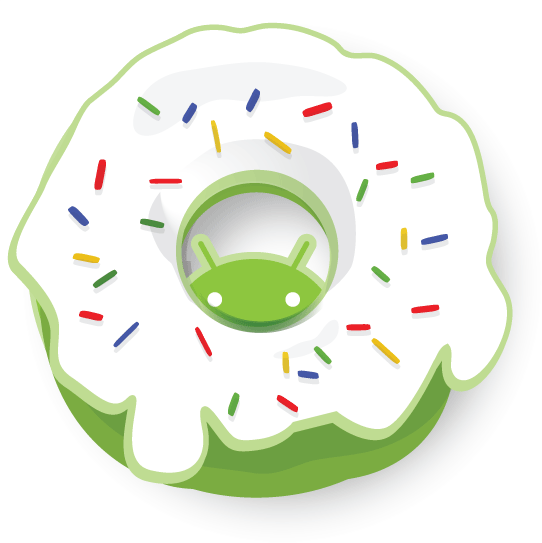
On September 15, 2009, Android brought us version 1.6, Donut, with this logo:

On October 26, 2009, version 2.0 was released under the name Eclair, which also encompassed version 2.1, and came with this logo:


Froyo was the nickname given to Android version 2.2.x, released on May 20, 2010, with this logo:


Android version 2.3.x, called Gingerbread, quickly followed on December 6, 2010, and we were introduced to this logo:


Honeycomb, released February 22, 2011, is Android version 3.x, but this operating system was for tabs only, so, since we primarily stick with cell phones, Honeycomb won't be discussed much. It does have a pretty fun logo, though:
On October 19, 2011, Android version 4.0.x, was released with this Ice Cream Sandwich logo:


Android versions 4.1 (released July 9, 2012) and 4.2 were called Jelly Bean with this logo:


Android version 4.2 was expected to be called Key Lime Pie, rather than a new Jelly Bean. It is still heavily rumored that the next in the dessert series will be Key Lime Pie, but there is no release date set, nor logo released. 
What do you think will come after Key Lime Pie? I've been vacillating between Licorice and Lollipop, but I think I'm going to guess Lollipop. Leave a comment with your Android version "L" dessert nickname guess.

The Android robot is reproduced or modified from work created and shared by Google and used according to terms described in the Creative Commons 3.0 Attribution License.

Thursday, November 1, 2012

How do you find your Android version?

It's very easy to find out what version of Android your phone is running, but one of those things that you don't usually know until you need to know. It differs a bit between phone manufacturers (Samsung, HTC, Motorola...), but the method is consistent enough between phones that this guide should help you find the info for any Android phone.

Tap Settings, then look for Phone or About Phone. There you will see your phone's software information, including a heading called Android Version. It will be formatted like this (for example): Android 2.3.7 or Android 3.2. For more information about what those numbers mean and how to match them to an Android version name, please see an upcoming post about the history of the Android operating system.

If this information does not help you find your version of Android, please let me know, in a comment, your phone's information (Manufacturer [such as Samsung], at least, and phone name [such as Samsung Galaxy S3], if possible), and I will answer with instructions specific to your device.