Showing posts with label Android Versions. Show all posts

Wednesday, April 3, 2013

How do you play Pandora internet radio, on an Android?

I don't often listen to local radio; not because I don't enjoy it, but because those with whom I travel think it ludicrous to plow through a dozen songs I don't want to hear, then finally hear a song I love... and could have played in the first place. While this is a valid point, I have two objections: one, songs I own are more exciting when I hear them on the radio; and two, how will I discover my new favorite song if I never venture outside my library? I think we all know the solution: 
Such potential...
Pandora works by starting with a track or artist you select, and playing similar offerings. I once created a station around the Robert Plant and Alison Krauss album Raising Sand, and was horrified by the results; usually, though, I'm impressed with how smoothly diverse songs are correlated. The first song my Josh Garrels station played, for example, was The Train Song, by Feist + Ben Gibbard -- I would not have thought to associate those artists, but when Pandora introduced that song to me (several months before I'd heard Josh Garrels), I liked its sound so much I bought it. Well done, Pandora. Well done.

But Pandora has been an Android app since 2009; why bring it up now?  Well, because it's an integral part of how you Android, and because a charming excuse to talk about Pandora came along, in the form of a pretty significant update to the app. In the new version, the biggest change is lockscreen controls, for the newest versions of Android. Faster start-up and a song progress indicator wrap up the most noticeable changes.

Would you rather hear a commercial for hair conditioner (played several million decibels louder than your station), or a 30-second pause in you music? Install Pandora Ad Blocker from the Play Store, and follow the simple instructions to activate it, if you prefer the pause. And, of course, download or update Pandora Internet Radio from the Play Store.

I leave you with this thought: I have heard from some that multitasking while playing Pandora is either limited or unavailable, on an iPhone. Is it so or is it not -- I can't get a straight answer. I do know, though, that multitasking on an Android is so smooth that you forget it's happening.

Friday, February 22, 2013

How do you perceive the new LG Optimus G Pro Android smartphone?

It's a pretty sweet phone, and there's a nice amount of hype, so I really should withhold judgment until the phone reaches us here in the states (sometime in the 2nd quarter is the expectation). But I'm throwing caution to the wind, and questioning the way this launch is being handled... we shall see whether the numbers end up confirming the insignificance of my marketing opinion. (If I'm right, official consulting hours are between 8 and 5, every other Thursday.)

First, a bit about the phone itself, starting with this picture LG recently released:
The percentage of the surface that is actual screen, particularly side-to-side, is pretty impressive... noticeably higher than that of the S III. I am wondering why LG is following in Samsung's footsteps by including a physical home button -- what am I missing, people? ...what reason is there for a physical home button? A few specs of the phone include a 5.5" screen (making this phone officially enormous), LTE networking, a quad-core 1.7GHz processor, and a competition-busting 13MP rear-facing camera plus 2.1MP front-facing camera. The AMOLED screen has a resolution of 400 pixels per inch (1920 x 1080 pixels), which LG is touting as great for HD video-viewing, with a hefty 3,140 mAh battery to keep up. Built-in storage of 32GB, plus 2GB of RAM, and finally that holographic design on the back that LG introduced in the Nexus 4, wrap up the highlights (and yes, you should be afraid due to the lack of a price projection). One minuscule downside: the phone is running Android version 4.1.2, though 4.2 has been out since the end of 2012. The differences between Jelly Bean 4.1.2 and Jelly Bean 4.2 are significant, so I'm only calling this downside minuscule because I assume updates will roll out quickly. Overall, definitely a note-worthy phone (or phablet, since it's 5-6"), with top-of-the-line specs, and an attractive design. So what's my problem?

We're excited about the LG Optimus G Pro now, watching Korea skip along with a shiny new phone we can't yet have; but we have a very short attention span -- we don't plan on being excited any longer, when we finally get it, in a few months. It might have made more sense to keep rumors swirling, but facts few, a little while longer, over here. Additionally, LG seems to be positioning the product as top-of-the line, no competition. So it may be, right now, but in a few months there will be bigger and better. LG has shown Samsung and HTC and Motorola exactly what they need to one up. Past precedent says they accept the challenge.

Wednesday, February 13, 2013

How Do You Know Android? (Easter Eggs & Hidden Features)

I spent some time, last weekend, with three iPhone-toting friends. Now, I try to keep my Android fervor contained, but if my input is invited, I eagerly enter into discussion. One iPhone argument presented was the ease of use, resulting in a straightforward smartphone experience -- no options means no confusion. Based on the fact that these are highly intelligent dudes, who aren't satisfied with face value, but must delve toward the root of any topic, I am unconvinced; iPhones don't cut it for their personality types, and I think they realize that. Unfortunately, I also encountered the brick wall of no strong iPhone or Android preference, simply happy with a phone that makes and receives calls: touche. However, one final point discussed was that iPhones have unpublished hidden features that are fun to discover; that point is the prompt for this post.
iPhone cannot compete with Android in terms of hidden features:

  1. Most Android phones will let you rename folders (in your gallery, for example) by longpressing the folder name.
  2. Another feature on most Androids is keyboard shortcuts like Search + B for Browser, Search + C for Contacts, Search + M for Messaging, Search + G for Gmail, etc.
  3. On the Samsung Galaxy S II, the screen brightness can be adjusted by holding the notifications bar until the bar disappears and the adjuster takes its place.
  4. On the Nexus 4 camera, swipe your finger from the top left and right corners to reveal menu shortcuts, for exposure and focus.
  5. On the Nexus 4, reveal hidden developer options by locating Build Number under About Phone, and tapping 10 times.
  6. On the Nexus 4, repeatedly tap Android Version, under About Phone, to reveal the Jelly Bean version Easter Egg. This time around it's a BeanFlinger game. Once you've found the Easter Egg and played it once, the game will become a "Daydream" screensaver menu option.
There are many more hidden features, tips, and tricks for Android... but if I told you what they all are, they wouldn't be a surprise any more. As you customize your Android, with widgets, preferences, etc., molding the perfect-for-you smartphone, you'll realize there are endless discoveries to be made.

Thursday, January 31, 2013

How do you overcome a Samsung Galaxy S III obsession?

I've done it: I'm over the S3. This gem has been the standard to which I hold all other phones since spring of 2012; but now, close to a year later, I have a new standard... and I've arrived at a place where I can acknowledge the features of the S3 that I'm not that excited about. (There aren't many.)

Flaw #1:
The Samsung Galaxy S III receives upgrades to Android too slowly. This is the most-purchased phone out there (Apple doesn't release too many numbers, but near as I can figure the 2nd place phone (the iPhone 5) sold 5,000,000 units its first week, while the S3 sold 9,000,000 that first week. And don't forget Android sales are divided up among many phone choices, while Apple fans have only one current option.), so you would think getting the second phase of Jelly Bean, version 4.2, wouldn't be taking this long. I'm bored with old Jelly Bean -- it's so three weeks ago.

Flaw #2:
It is irritating that the Samsung Galaxy S III takes a Micro SIM. This, however, is a very minor fault. First, because it would seem devices are heading in the direction of Micro SIMs, based on the fact that my new favorite (to be revealed below, after a bit more nail-biting suspense) also takes a Micro SIM; second, because it is easy to convert a Standard SIM to a Micro SIM, as well as to use an adapter to switch it back.

Flaw #3:
This is my most serious complaint with the Samsung Galaxy S III: the physical home button. I dislike this immensely. We switched to touch for a reason. It seems minor, and until I had actually used an S3 I just though Huh... interesting (though even at that early hour I was harassed by my second reason to dislike the physical home button). After using it, I realized it really makes a difference -- you have to hold a phone differently, brace it differently, if pressure (not just touch) is required to get a response. My second complaint with the physical home button is that it is a feature of iPhones -- Android doesn't need it; Android doesn't want it. Android has given Apple incentive to point and laugh: Ha! They're trying to make their phones just like ours! Not good.


I still think fondly of the S3 (it is a gorgeous phone: sharp and slim), but it is no longer my favorite. The Google Nexus 4 now holds that position. The specs are top of the line; the design is sleek; as Google's phone it receives updates lightning-fast; and (my favorite feature of all) the Android operating system is not seen through the film of Samsung, HTC, or Motorola -- it's pure Android.

Wednesday, January 16, 2013

How do you use the SIII wireless share technology on other Android phones?

I thought the Samsung Galaxy S III deja vu commercials were pretty spectacular. They started out looking rather Apple, with hipsters camping out in front of the store, waiting for the Next Big Thing. "The connector's all digital; what does that even mean?!" gushed one Apple enthusiast. "I hear the headphone jack is on the bottom," another claims, with an accompanying 'blown mind' audio/visual aid. Then a sweet old couple comes up to a young man in line and thank their son for holding the spot. (Wait... old people own iPhones?) "Have you ever had deja deja deja deja vu?" (Are we becoming pitiful, on this our 5th wait for the not-so-different new iPhone?) Sure, some laugh the commercial off ("Yes, insulting people is a great way to get them to buy your product."), but it was witty, it was talked about, and it worked. It's funny how we think we can't be influenced by get-inside-your-head tactics that subtly begin altering our point of view (I might be guilty, myself), but if you hear enough times that buying an iPhone is following the pack, you might think about Androids next time you're in the market.

Since that commercial shows two Galaxy S3 owners touching their phones to exchange a file, this is my segue (who else was certain that was pronounced say-GOO when they read it in intermediate piano books?) into discussion of Wi-Fi Direct sharing.


The really cool part is that you don't have to have an S3 to do this. The S Beam program (what it's called on the S3) is a combination of Near Field Communications (NFC) and Wi-Fi Direct. Let's say you just took a picture of yourself and your friend, and your friend would like the picture too. Go into your phone's settings, and touch More Settings, under the Wi-Fi section. Phones with compatible Android versions will have the option to turn on Wi-Fi Direct there. The owner of the transfer-to phone needs to turn Wi-Fi Direct on as well. Now go into your gallery, find the picture you want to send, touch menu, touch share or send, and select Wi-Fi Direct as your method. After a few seconds of scanning, phone number 2 should show up. Select the phone, touch Done, and after approving a connection with your phone, phone number 2 will receive the file. Of course any file can be sent this way. After you're finished with Wi-Fi Direct, it should be turned off for 2 reasons: 1, it's not secure to have your connection floating around; 2, your phone's Wi-Fi connection will be down until it's turned off. After a few minutes of no use, Wi-Fi Direct will be turned off automatically, but just doing it yourself right away would be a good idea. Since this is such a convenient and fast way of transferring files, you might want to think about saving time by putting a homepage widget to control whether Wi-Fi Direct is on or off.

Wednesday, January 9, 2013

How do you automate tasks on an Android phone?

You walk out to your car, and your Android begins playing Pandora radio and switches to car mode. You walk into the office, and Pandora exits, as your phone  moves into standby mode where pictures from your gallery float around the screen. As the meeting in your schedule approaches, your Android reminds you and then opens the camera in front-facing mode, for a quick appearance-check before you go impress the boss.

All of this can be automated, using an app like Tasker. It's a fascinating system of prompts... if this, then that scenarios, rather like an Excel formula. For example, as you leave your house, you can't pick up home's Wi-Fi, which becomes a prompt to open Pandora and switch to car mode. Picking up the office network could be the prompt as you arrive. A couple other simple prompts would be an incoming notification, or opening an app.

Location or activity-based automations aren't the only option with Tasker; you can also set up shortcuts, in which one touch will go through a whole process. For example, you can write a command that will put an icon on your screen which, when touched, will take a picture and email it to a specific email address in your Gmail account. If your phone can do it, Tasker can automate it. The potential with this sort of program is limitless, helping you to keep up with life, never forget important events, and do everything you currently do with your phone, without all the steps in between that seem to take up most of the time we spend with our eyes on our Android screens.

Get the app from the Google Play Store here.
Get the free trial here.

Friday, January 4, 2013

How do you provide evidence that Android is superior, from people who matter?

You know Robert Kawasaki... Rich Dad, Poor Dad? I'm not talking about him. I looked it up, and they're not related.
This is Guy Kawasaki. And he's his ooooooown thing.


Guy Kawasaki was an "Apple fellow"... officially. In 1995, after the original Mac craze had fizzled out, Kawasaki was on staff at Apple with the modus operandi to, as he put is, "reignite the Mac cult." While he probably saved Apple from failing that decade, and while he continues to use and love Mac's, he has interesting things to say about the iPhones he no longer carries.

When the iPhone 4S was the newest Apple iOS release, Kawasaki switched over to an Android mobile phone, because he wanted to take advantage of 4G LTE network, which advance had not yet reached Apple. While this deficiency has been removed in the iPhone 5, Kawasaki adamantly sticks with Android. A few of his favorite features include superior multitasking, alphabetically arranged apps, NFC support, and a standard cable.

Kawasaki explains the transformation, saying, "I fell in love with Android on the smartphone, and then I got a Nexus 7 and started using Android on the tablet as well. To me the great irony is that Apple's slogan was 'Think Different,' but today if you think different you're looking at Android." He has now arrived at a place where he says, "Real men use Android."

By the way, Steve Wozniak -- co-founder of Apple -- while preferring iPhone personally, has been recorded as recommending Androids to certain people. Interesting.

Saturday, December 29, 2012

How do you use Android Jelly Bean version 4.2?

Last month, Google released Android version 4.2... an upgrade on the July-released Jelly Bean. It's pretty sweet.


You know how you dismiss the upgrade iTunes reminders dozens of times before eventually upgrading, and more often than not you don't see a change? (Ok, to be fair iTunes is a solid program, which I do use.) Well, not so with Android upgrades. Upgrades always seem zippier, smoother, and just cool feature-filled. The camera in 4.2, in addition to changes in the notifications bar capabilities are probably the biggest changes. Feature-by-feature, this is what's new in Android Jelly Bean, version 4.2:

  • Any HDMI-enabled TV can display what's on your Android, wirelessly. All you need is a wireless display adapter, and your phone can beam to the TV.
  • A feature that I thought pretty whatever until I thought about it more is the phone's screensaver mode. Like a computer, instead of just going black, your screen can default to a screensaver-style display. This could be slideshows of your gallery pics, your news feeds, etc. It's pretty neat. Think about it.
  • Before Jelly Bean, notifications were simply info and a port to open the app where you take action; now you can actually choose some options from notifications. For example, if you have a reminder pop up, you could choose to email the participants or dismiss the reminder right from the drag-down notifications bar.
  • Battery life is improved in this Android version, through a brilliant feature in which your fingers on the screen increase CPU usage, which goes semi-standby when not in use. Touchscreen and speed improvements are noticeable... zippy is my word of choice.
  • Now we've all seen the spectacular Samsung Galaxy S3 commercials, in which device owners share content just by touching the phones. Did you know the S3 isn't the only phone that can do this? Android Beam is a new program that uses a tap to wirelessly beam just about anything on the screen between two phones with the program.
  • Widgets (my number one reason to prefer Android over iPhone) have taken a big step in this version. Now when you drop a widget on your screen, instead of that irritating message that it doesn't fit, which causes you to lose the widget you were holding and have to dig it up again, now other widgets will resize to make room for the new one. That's very friendly of them, don't you think? 
  • Google Now makes your phone into even more of a personal assistant. You get weather every morning, location-based info such as train schedules, etc. Google searching has also improved, as well as capability to browse the web with your voice.
  • The Photo Sphere camera is a huge improvement in Jelly Bean 4.2. Basically, the camera shoots in all directions, and joins the photos together, rather like a very intelligent, vertical and horizontal panorama software.
  • Last, and probably least, Google is now excited about gesture typing. But I already knew about gesture typing, and I already like Swype (see this article about the Swype keyboard) muchly, so I'm not excited about this. Sorry, Google.
This Android 4.2 upgrade of Jelly Bean is pretty impressive. I love software developers that understand the importance of upgrades upgrading something.

Saturday, December 8, 2012

How do you get Adobe Flash Player on an Android?

On August 15, 2012, Adobe pulled its Flash Player from the Google Play Store. What a way to celebrate the birthday of my friend in Vermont, I'm sure you're thinking. No? Just me? .... Oh, ok.

Until recently, if a website had media-rich interactive content, it needed add-on's like the Adobe Flash Player and JavaScript to make the content display and function properly. Now HTML5 (HTML, hypertext markup language, is the language websites are written in) has that function built into it, rendering an add-on redundant. Clearly this is much more streamlined, but RIP, mobile Adobe Flash Player. Actually, Adobe is behind HTML5 as well, so they replaced their own product... much less solemn.


The question, then, is why would you want the Flash Player on your phone, if it's been replaced by HTML5 so smoothly that developers expect few to notice the change? Because many websites are not yet on HTML5, and still have Flash content that is hidden or malfunctioning on our mobiles, without Flash.

This is not one of those complicated delve into your command prompt scenarios; it's really easy. Go to this page of archived Flash Player versions, and page down about 5 times, until you reach the Android versions. Find your correct version of Android (as always, let me know in a comment if you need help) and click to download that Flash Player version. Your computer will probably pop up a message saying it doesn't know what program to use in opening the file, after the download is complete. Dismiss the message, and navigate to this site. Click Browse Files, and in the box that pops up click Downloads, in the top left corner. Make sure this page is sorted by most-recent first, so the file you downloaded will be the first. Click that top file, which ends in .apk. The website will then convert your file into a format that can be installed on your phone. Use your phone's code scanner to scan the QR that the website will produce after a few minutes of processing. At this point, the Flash Player is downloading on your phone.

Wednesday, November 14, 2012

How do you upgrade Android OS on a Samsung?

Many phones will update automatically, once the Android OS (Operating System) update is available for your model. Many won't, though. The first thing to try, when upgrading your Android, is to go into your phone's settings, and select About Phone, then System Updates. If you get a message, "Your system is currently up to date," continue reading. Otherwise, follow the steps on your phone and you'll be updated!
At this point, verify that there actually is an update available for your phone. Either google it or tell me, in a comment, what phone model you have and I'll let you know what the latest version of Android is for your phone. Assuming there is a newer version of Android, here's how to get it.
On your phone, you should have an app called Kies. There is also a computer version of that program, for Windows or Mac. Download it here, if you don't already have it. Just opening the page in your browser (like the app tells you to do) won't cut it... you need to actually download Kies, from that page. 
Now plug your phone into your computer. Kies should recognize it automatically. If you want to save your phone info (pictures, music, contacts...) then open the Back Up/Restore tab, and follow the instructions there. Now click Firmware Upgrade and Initialization, in the Tools tab. Follow the steps there, and hopefully Kies will find your upgrade. If it also tells you that your version of Android is up to date, then continue reading.
Unplug your phone, and navigate to Firmware Upgrade and Initialization again, on your computer. The first step you'll need to do here is enter your phone's model number, which is something like SGH-I900 (make sure you do all caps, or it won't recognize it), and then your phone's serial number, which can be found in About Phone under Settings, or else under your battery, in the back of the phone. Continue through the process until the install is complete, on your computer. Now you need to put your phone in download mode, which you do by turning the phone off, then holding down both volume buttons at the same time as you plug the phone back into your computer. From here, everything should finish automatically. Your phone will show a message about downloading, and warn you not to turn off target. Soon your phone will restart with a beautiful new interface, and you will go through the original set-up process again. If you backed your phone up, now pull it up in Kies to restore the backed up version, which will put the info back on, but will keep the new Android version.
This is a bit complicated, but very easy to do, step-by-step. If you run into any trouble, let me know and we'll see about getting your Android updated.

Tuesday, November 13, 2012

How do you Android -- Getting Started

Congratulations on choosing Android! You've made a wise choice; see diagram below:


Now what do you do to get this brilliant phone working for you? After activating the phone with your carrier, your first step is to get the phone charging. If you bought the phone used, then start with a master restore (navigate to Settings>About Phone>Factory Reset... or similar). At this point your phone should be asking you to go through the setup process, which is primarily signing into or creating your Google account (Google owns Android... fun fact of the day that you probably already knew). Now before you start entering contacts or setting ringtones, check that your software is updated. This is a first step because an update will remove all your information from the phone, so you might as well get the update done before you've entered your info, rather than backing the phone up to prepare for an updatae. (See post How do you find your Android version? and upcoming post about updating Android version).  If you have access to Wi-Fi, connect (touch Menu, then Settings) before updating, so that you don't eat into your data plan (even if it's unlimited, you'll get throttled if you use too much), and because Wi-Fi is faster for all these updates and installs that you need to start out with.
Your phone is as updated as it can be, and you've signed into your Google account now, which will pull in all your contacts if you've had an Android before. If your contacts are not yet stored through Google, see upcoming post about getting contacts from a non-Android phone to an Android smartphone. Next, open the Play Store (on some phones it will be called the Market, until you've opened it and it automatically updates to the newer Play Store). Touch the menu button, then My Apps. Here there should be a button for Update All. While the pre-loaded apps update, you can work on adding the Apps you want. The Bible, Starbucks, Flashlight, Amazon Kindle, eBay, and Pandora are among the first apps I install.
Now, as these apps continue to update and install, open the apps that require signing in, such as Facebook and Twitter. After you've signed in, you will have options to configure notifications (the icon that pops up on the bar at the top of your screen, when there is activity in an app), including when to notify and whether to make sound (adjust volume with the buttons on the side of your phone, if you're setting anything to make sounds). If you use Gmail, your original Google sign-in set Gmail up. If you use another email program, touch the Email app, and follow the instructions to sign into your email account and receive notifications. Lastly, I recommend installing the newest version of Swype (see post How do you use the Swype keyboard?)
At this point, you're getting your emails and social network notifications, you can make calls and text, and you've installed the most important apps. Your phone has become quite functional. There's a lot more to configure and discover, such as ringtones, contact icons, real-time weather... but this is enough of a start that you're making good use of your Android.

Friday, November 2, 2012

How do you know Android? (Android Dessert Logos)

This is the first post in a special series, that will be updated occasionally, entitled How Do You Know Android?, which gives interesting Android-related information, rather than how-to instructions. Enjoy!


On November 5, 2007, Android beta was released. Rumors say beta versions were nicknamed Astro Boy and Bender. The first version of Android to be officially released on a phone was Android 1.0, released September 23, 2008 on the T-Mobile G1 (internationally known as the HTC Dream). This first version of Android went without a name, but was quickly followed, on February 9, 2009, by version 1.1, which was internally called Petit Four. 


It was with version 1.5 that the well-known alphabetical dessert series started. Release dates, names, and logos officially released or announced as of November 9, 2012 are laid out in this post.

On April 30, 2009, Android version 1.5 was released with the nickname "Cupcake" and this logo:


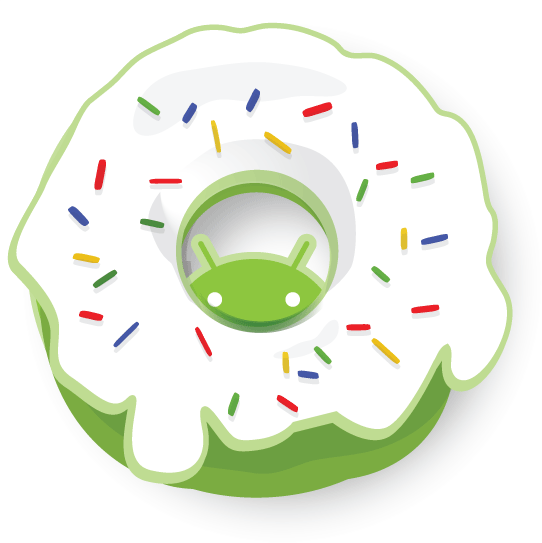
On September 15, 2009, Android brought us version 1.6, Donut, with this logo:

On October 26, 2009, version 2.0 was released under the name Eclair, which also encompassed version 2.1, and came with this logo:


Froyo was the nickname given to Android version 2.2.x, released on May 20, 2010, with this logo:


Android version 2.3.x, called Gingerbread, quickly followed on December 6, 2010, and we were introduced to this logo:


Honeycomb, released February 22, 2011, is Android version 3.x, but this operating system was for tabs only, so, since we primarily stick with cell phones, Honeycomb won't be discussed much. It does have a pretty fun logo, though:
On October 19, 2011, Android version 4.0.x, was released with this Ice Cream Sandwich logo:


Android versions 4.1 (released July 9, 2012) and 4.2 were called Jelly Bean with this logo:


Android version 4.2 was expected to be called Key Lime Pie, rather than a new Jelly Bean. It is still heavily rumored that the next in the dessert series will be Key Lime Pie, but there is no release date set, nor logo released. 
What do you think will come after Key Lime Pie? I've been vacillating between Licorice and Lollipop, but I think I'm going to guess Lollipop. Leave a comment with your Android version "L" dessert nickname guess.

The Android robot is reproduced or modified from work created and shared by Google and used according to terms described in the Creative Commons 3.0 Attribution License.

Thursday, November 1, 2012

How do you find your Android version?

It's very easy to find out what version of Android your phone is running, but one of those things that you don't usually know until you need to know. It differs a bit between phone manufacturers (Samsung, HTC, Motorola...), but the method is consistent enough between phones that this guide should help you find the info for any Android phone.

Tap Settings, then look for Phone or About Phone. There you will see your phone's software information, including a heading called Android Version. It will be formatted like this (for example): Android 2.3.7 or Android 3.2. For more information about what those numbers mean and how to match them to an Android version name, please see an upcoming post about the history of the Android operating system.

If this information does not help you find your version of Android, please let me know, in a comment, your phone's information (Manufacturer [such as Samsung], at least, and phone name [such as Samsung Galaxy S3], if possible), and I will answer with instructions specific to your device.